Snapr
SnaprCapture
Snapr unifies screenshots and screen recordings into a single fast capture workflow. Press one shortcut, choose your target, and you are done — no app switching needed. Whether you are documenting a bug, recording a demo, or grabbing a reference image, this productivity capture tool keeps you moving.
Snapshot#
Activate the snap capture mode, define the target region, and capture. Snapshots are saved instantly, so your screenshot workflow never stalls. Use region, window, or full-screen mode depending on what you need — Snapr adapts to your situation.
Recording#
Activate the recording capture mode, define the target region, and capture. Recordings start with an optional countdown, giving you time to prepare your screen. Because screenshots and recordings share the same interface, switching between them is effortless — a hallmark of a true all-in-one capture tool.
Viewing Capture Files#
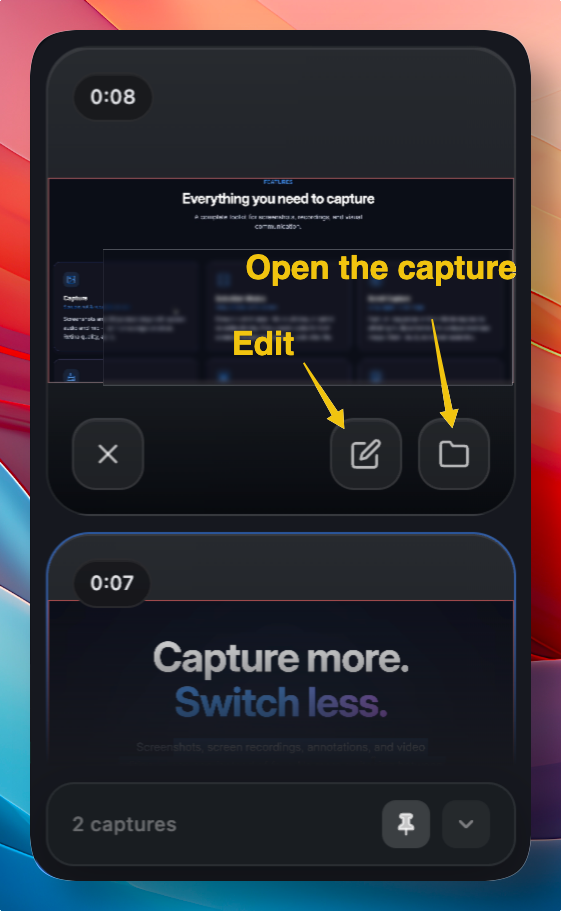
Once the capture is complete, the result will be displayed in a floating window. From the floating window, you can jump straight into editing or navigate to the folder where the captured file is saved. The instant preview means you can verify your capture without opening a separate application. If the result needs annotation, one click takes you directly to the built-in editor — keeping your entire screenshot workflow inside a single screen capture tool.