 Snapr
SnaprPost-Capture Editing
Snapr provides the ability to edit your results right after taking a snapshot or recording. Instead of exporting to a separate editor, you can annotate screenshots fast and trim recordings in one place. This built-in workflow turns Snapr into a true all-in-one capture tool — capture, edit, and share without breaking your concentration.
You can also open existing images and compatible MP4 videos. Use editor presets to reuse background, cursor, and export settings.
Snapshot Editor#
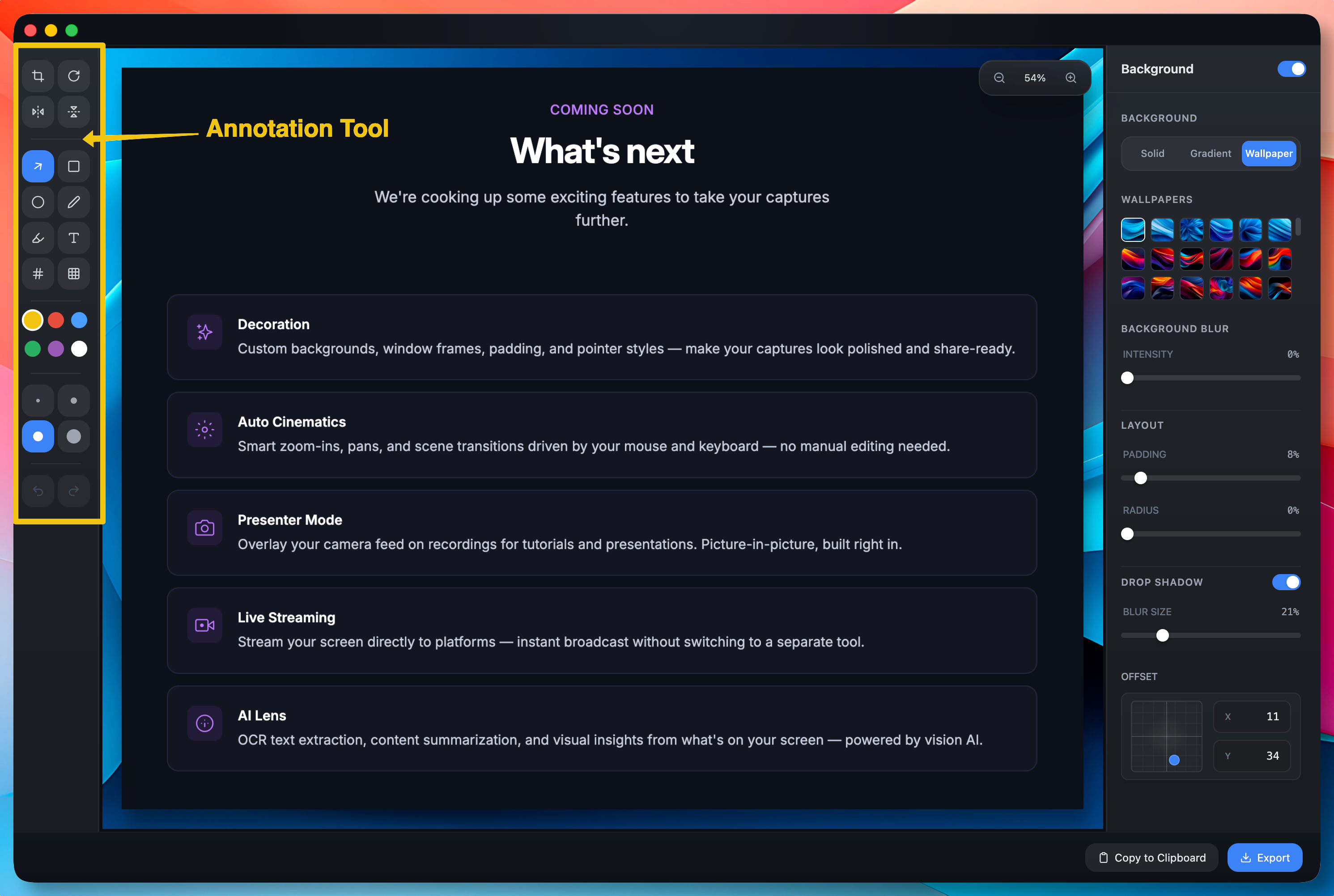
- Various annotation tools (arrows, shapes, text, highlighter, etc.)
- Mosaic (blur) processing
- Crop, rotate, and flip
- Quick numbering (automatic number labels)
- Background composition
With these tools you can annotate screenshots fast — add callouts, highlight areas of interest, or blur sensitive data before sharing. The quick numbering feature is especially useful for step-by-step guides, letting you label each action in seconds. Background composition gives your screenshots a polished, presentation-ready look without leaving the screen capture tool.
Recording Editor#
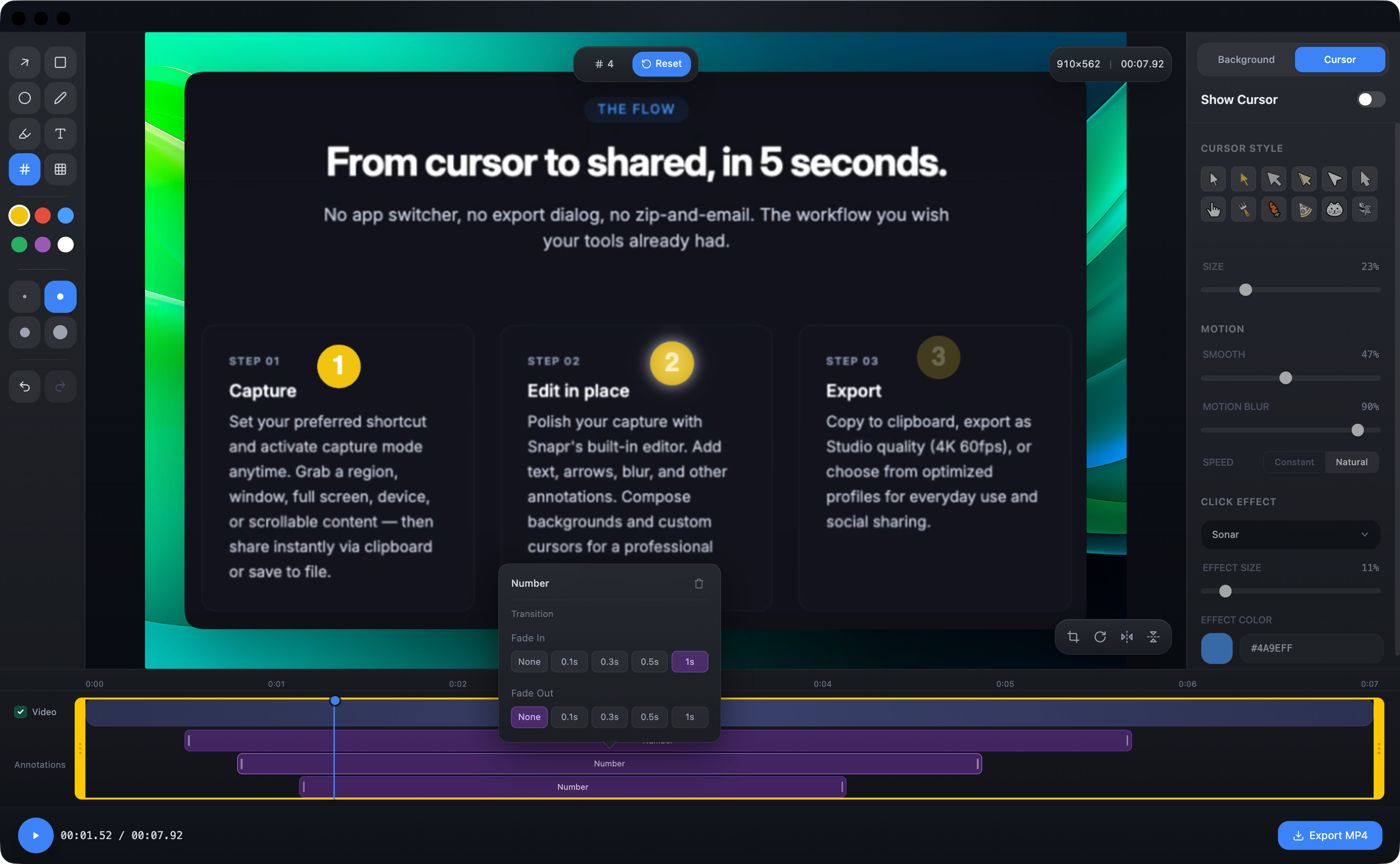
- Trim sections on the timeline
- Timeline-based annotations (arrows, shapes, text, highlighter, etc.)
- Mosaic (blur) processing
- Crop, rotate, and flip
- Quick numbering (automatic number labels)
- Audio stream toggle (system/microphone)
- Background composition
The recording editor features a visual timeline where you can trim unwanted sections and overlay annotations at precise moments. Audio stream toggling lets you mute or isolate system or microphone audio after the fact — perfect for cleaning up tutorials and demos. Combined with crop and background composition, it is everything you need for a fast screenshot workflow that extends seamlessly to video.
Draw with Shift#
- Pen and highlighter: hold Shift for a straight segment. Press it during a stroke to start the straight segment from that point; release it to continue freehand.
- Box and circle: hold Shift while dragging to keep a square or a perfect circle.
- Arrow: hold Shift to lock the current direction while changing its length.
To change an existing annotation, switch to the selection tool with Escape, then select the annotation.
Copy, share, or export#
The output button at the bottom shows the current action. Open its arrow menu to change the action; selecting an option does not run it. Use the main button to perform it.
- Images: Copy to Clipboard, Export Link, or Export File. Choose PNG or PDF when exporting an image to a file or link.
- Videos: Export Link or Export File, with video export settings available before output.
The last action is remembered separately for images and videos. Link export requires a configured sharing provider; see Shareable Links.
Enable Close editor when done in the same menu for a copy-and-close or export-and-close workflow. This choice is remembered. Snapr closes only after the action succeeds, not if it fails or you cancel it.
Closing this way does not save workspace edits. The exported result includes your edits, but it is not a saved editable workspace. If you want to revise the work later, save the workspace before using this option.
Keyboard navigation#
Use Tab or Shift+Tab to move between major control groups. Within tool, color, size, transform, and preset groups, use the arrow keys to move focus and Enter or Space to select. Focusing an option does not apply it. Use Escape to dismiss a menu.
In the timeline editor, Space plays or pauses when focus is on the editing surface; focused buttons and menus handle their own keyboard actions.