 Snapr
SnaprDevice Capture (macOS Only)
Remember the tedious process of capturing on your iPhone/iPad and transferring it to your Mac? With Snapr, you can connect your iPhone/iPad screen to your Mac and take snapshots or recordings directly. This all in one capture tool gives you full resolution output with no compression artifacts, making it ideal for app demos, QA testing sessions, and tutorial recordings. Use it to create professional-looking mobile content without any third-party mirroring software.
Requirements#
- macOS only (12.0+ Monterey or later)
- iOS/iPadOS 12.0 or later
- USB cable connection required (screen capture is not available over WiFi)
How to Use#
- Connect your iPhone/iPad to your Mac using a USB cable.
- When the "Trust This Computer" popup appears on your iPhone/iPad, select "Trust".
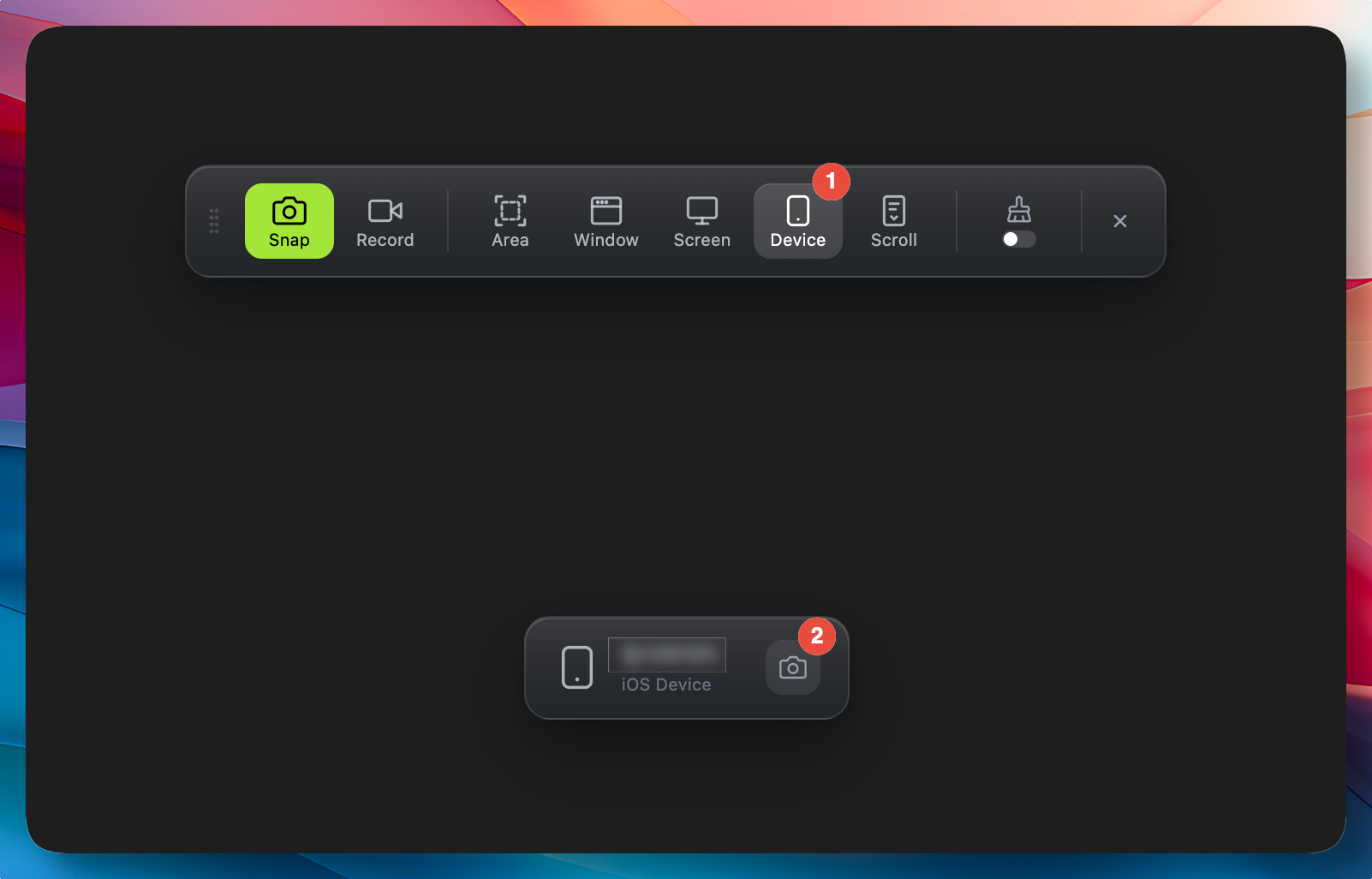
- After activating capture, switch to device mode and your connected iPhone/iPad will be available for selection.
Troubleshooting#
Device Not Connecting
- Check your USB cable and port. Try a different cable and port.
- Make sure the "Trust" setup is complete. You must select "Trust" when the "Trust This Computer" popup appears on your iPhone/iPad.
USB Connected and "Trust" Confirmed but Still Not Working
- In QuickTime Player, select File > New Movie Recording, then check whether the connected iPhone/iPad appears in the dropdown menu next to the record button.
- Often, once the device connects through QuickTime, it will also connect in Snapr. If it still does not work, try restarting your system and attempting again.