 Snapr
SnaprSettings
Snapr gives you full control over your screenshot workflow. From custom shortcuts to appearance themes, every option is designed to help you capture faster and stay focused. Tailor these settings once and enjoy a streamlined productivity capture tool experience every day.
Available Options#
- Language settings
- File save settings (capture files and workspace files)
- Post-capture action settings
- Region selection mode settings
- Recording countdown settings
- Capture shortcut assignment
- Appearance settings (capture control bar, region style)
Settings Details#
File Save Settings#
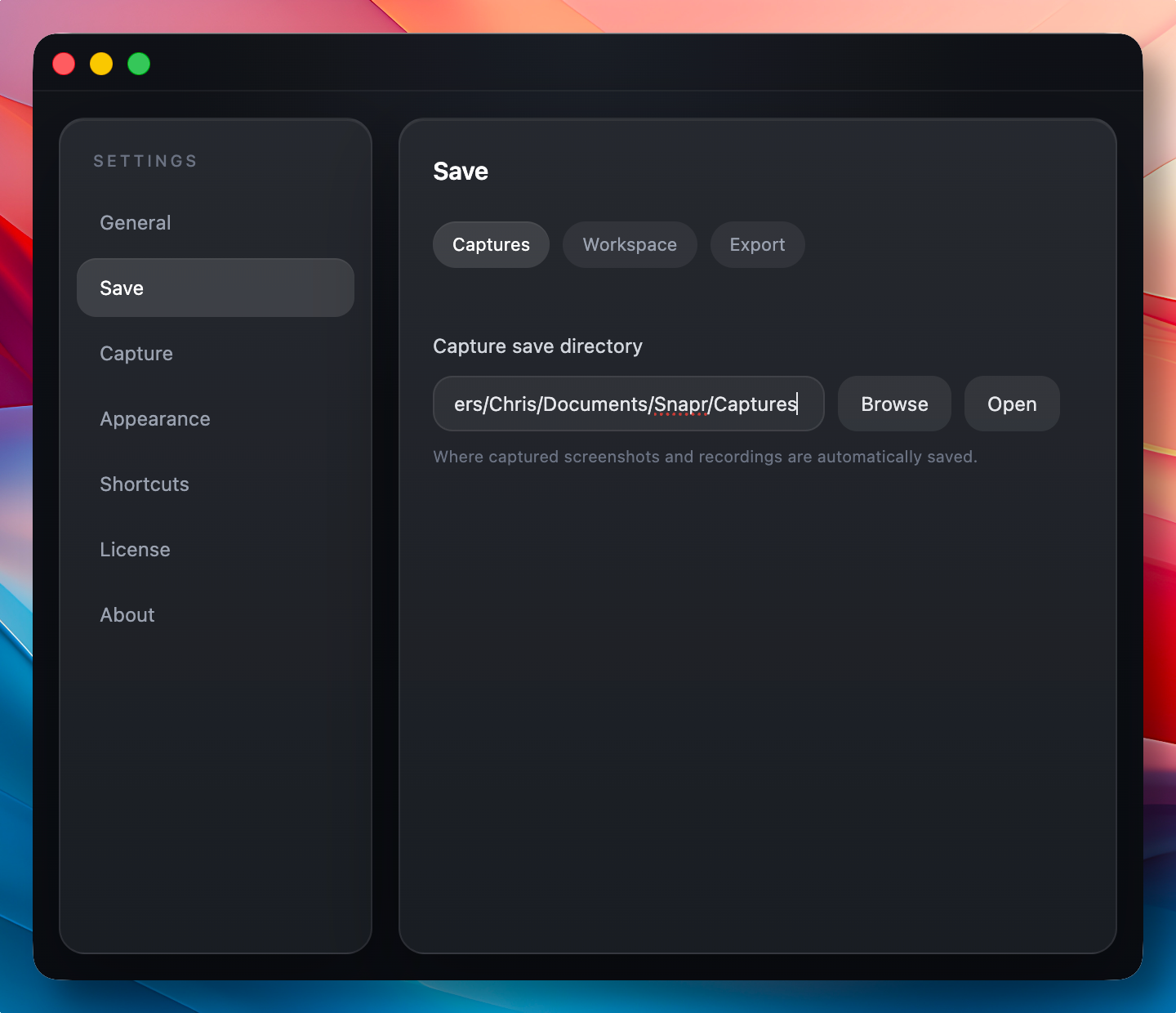
Capture File Save Location
This is the location where original capture files are saved. The default is Documents/Snapr/Captures within your user folder, but it can be customized.
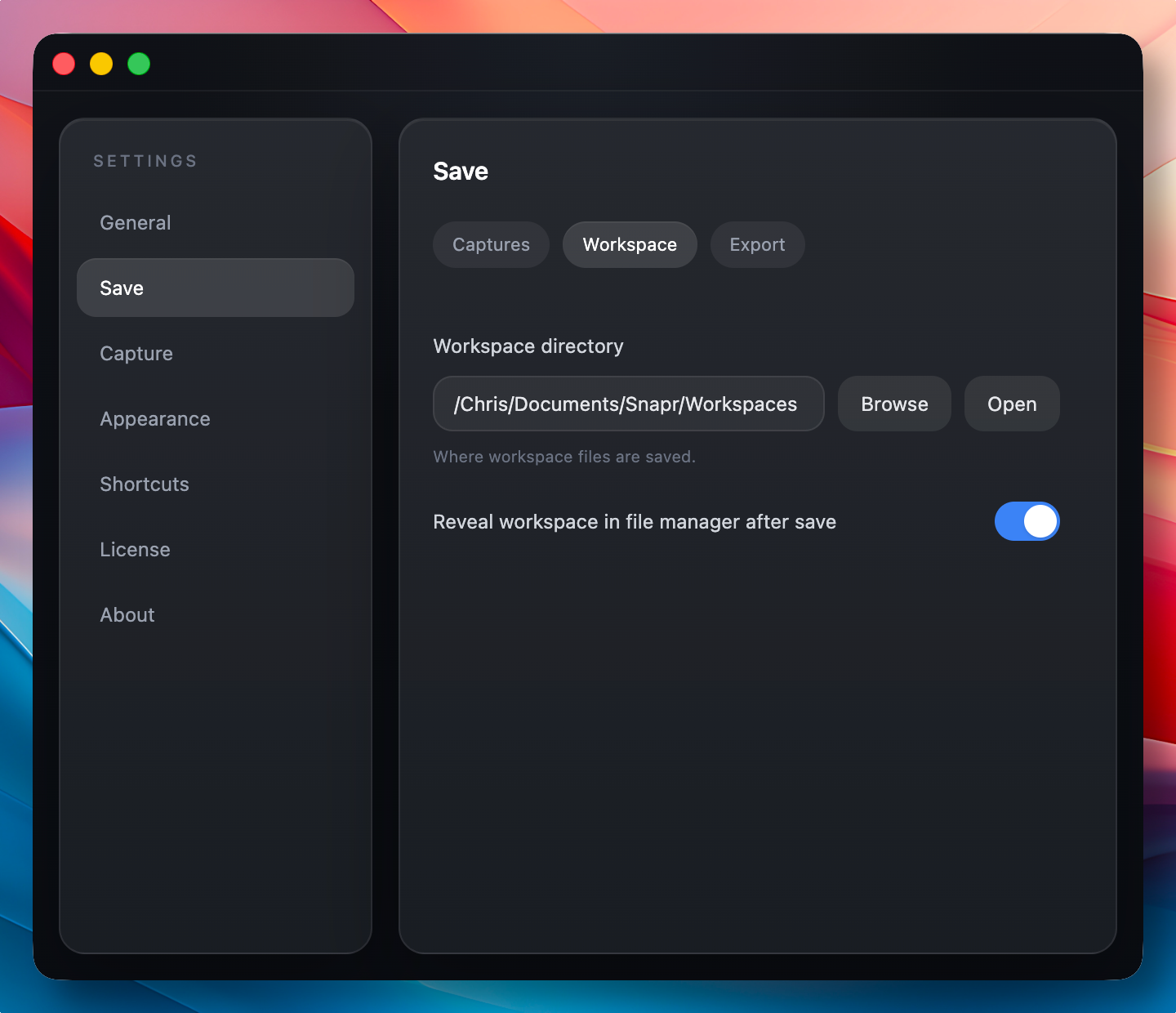
Workspace File Save Location
Snapr is a tool designed to let anyone capture their screen quickly and easily. Beyond that, it also provides editing features to refine your captured images into more polished results. In Snapr, the space where this editing takes place is called a workspace, and the workspace refers to the actual location where your work files are saved.
Post-Capture Action Settings#
Snapr strives to accommodate a variety of user purposes and workflows. Whether you want to use your capture results right away, jump straight into editing, or simply finish capturing quickly and quietly with no extra steps, we have considered all of these needs. You can choose your preferred behavior in the post-capture action settings.
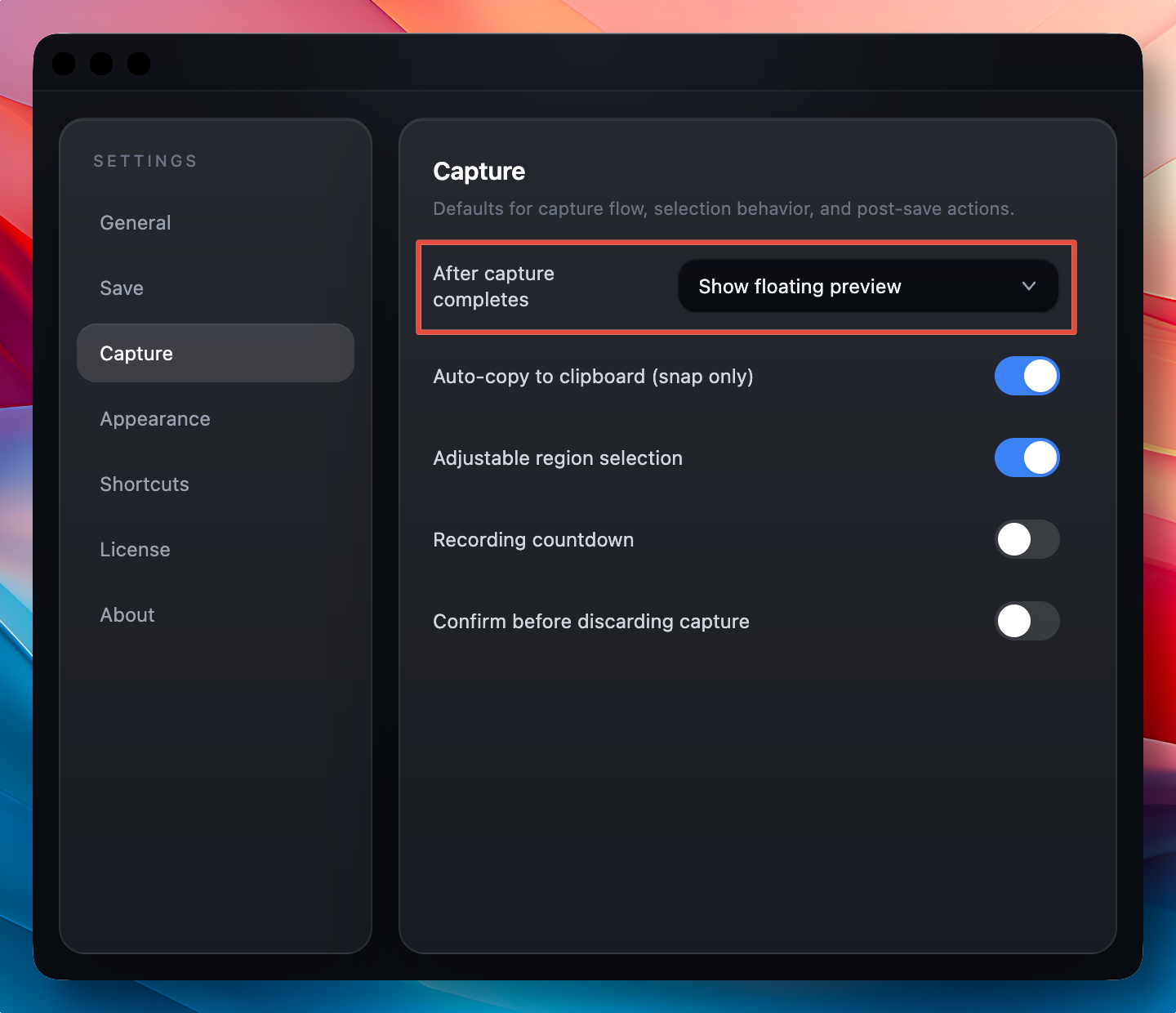
- Show preview in floating window: A small preview window appears after the capture is complete. You can quickly review the captured image and jump into editing if needed.
- Open editor: Open the image or timeline editor directly. This is the default for new installations.
- Open capture save location: The folder where the capture was saved opens automatically. This option is useful for users who want to check the captured file right away or use it in other tasks.
- Open plugin actions: Open the post-process actions for the completed capture.
- Do nothing: The capture completes quietly with no additional actions. This option is useful when you need to take multiple captures quickly, letting you stay focused without unnecessary windows or notifications.
You can also change common options from the capture bar's gear button. Its popover includes the completion action, Quick Capture, clean desktop, and custom cursor options. Clipboard copying appears in screenshot mode; countdown appears in recording mode. The popover also provides a shortcut to the full Settings window.
Region Selection Mode Settings#
Snapr provides various modes for selecting the capture target: region selection mode, window selection mode, full screen mode, and device mode (Mac only).
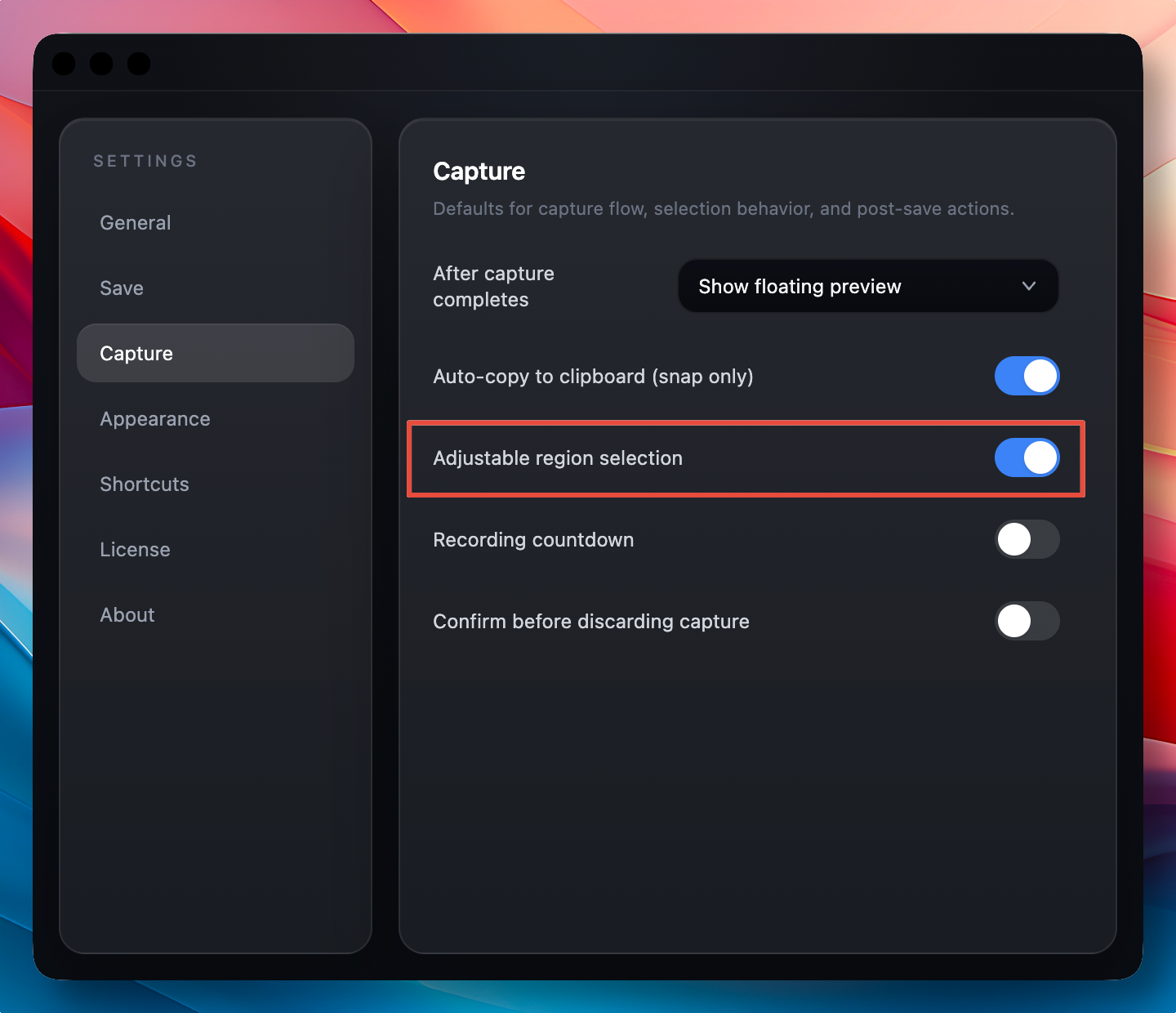
In region selection mode, Quick Capture controls whether you can adjust the selection before capture:
-
Quick Capture OFF: After selecting a region, adjust it before confirming the capture.
-
Quick Capture ON: Capture immediately after dragging the region, without a separate adjustment step.
Recording Countdown Settings#
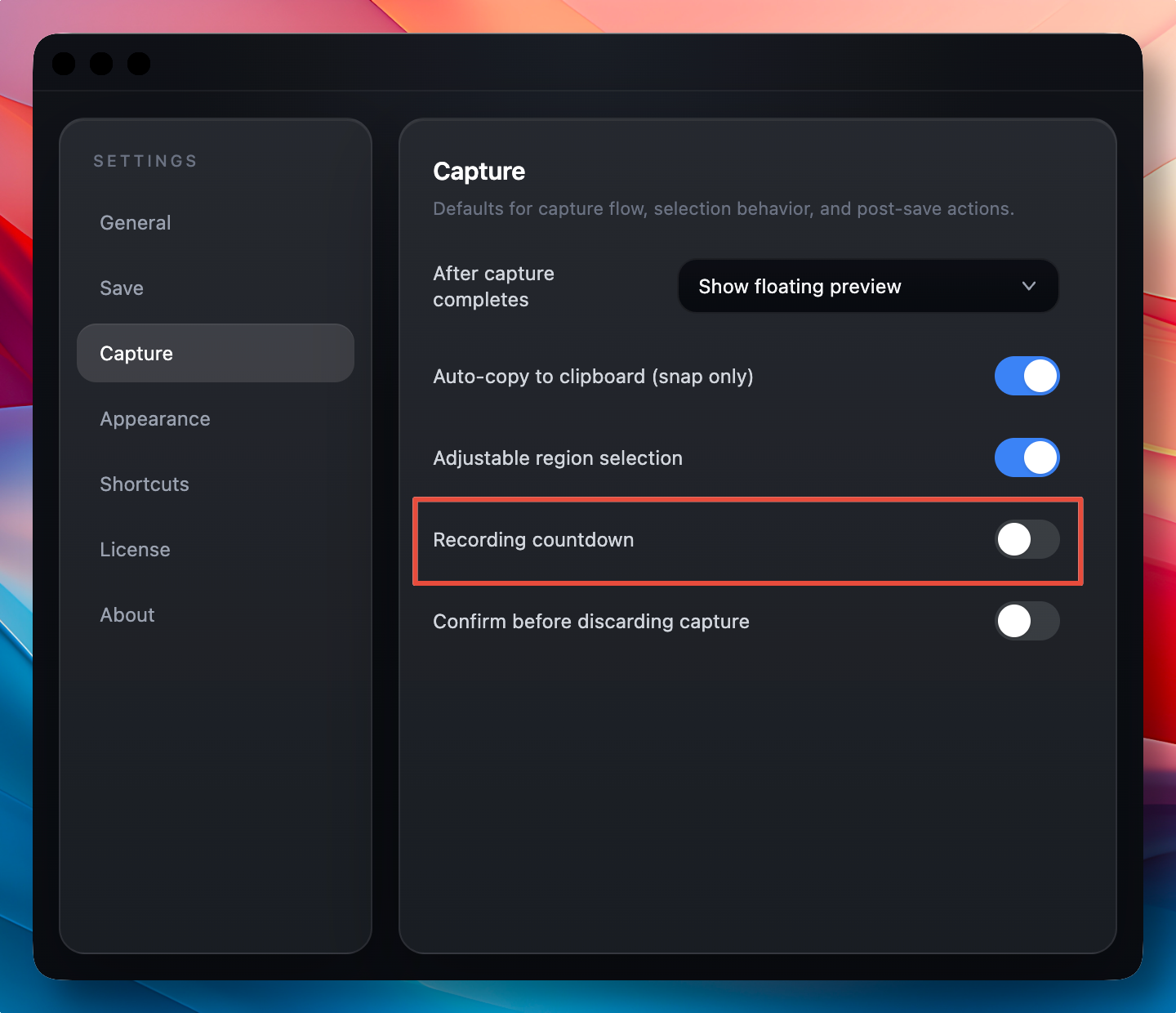
You can choose whether to display a countdown (3 seconds) before recording begins. This option is useful for users who need time to prepare before the recording starts.
Capture Shortcut Assignment#
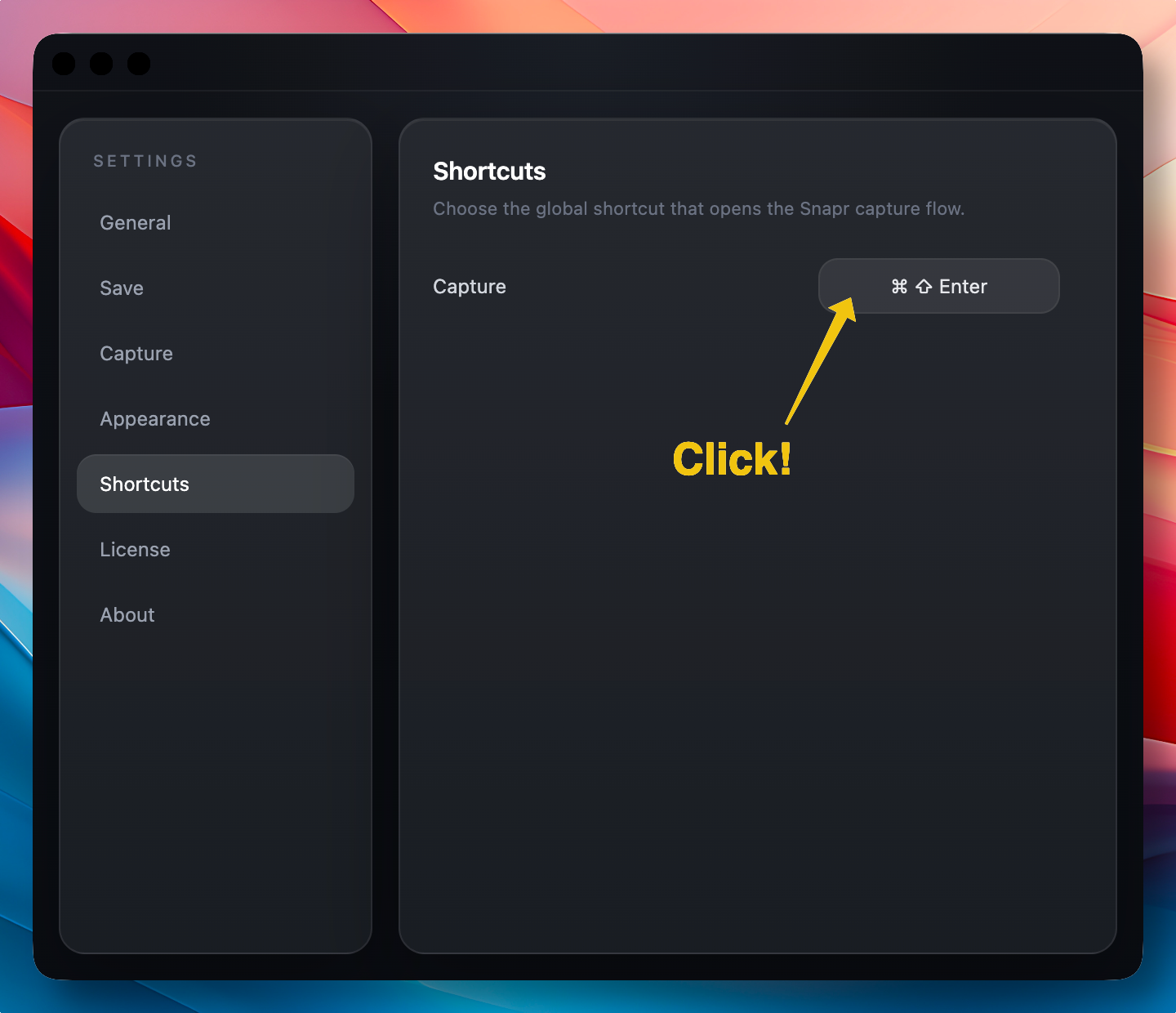
Snapr also provides shortcut settings for quickly launching captures. What makes Snapr special is that you can freely assign any shortcut you want. A well-chosen shortcut is the foundation of a fast screenshot workflow — it removes the need to reach for your mouse or navigate menus. Assign a key combination that feels natural and you will save seconds on every capture throughout your day.
Appearance Settings#
Snapr offers a variety of options to customize the appearance of capture tools to your preference. You can configure the position and transparency of the capture control bar, the style displayed during region selection, and more. A personalized interface keeps your screen capture tool out of the way when you do not need it and immediately visible when you do.
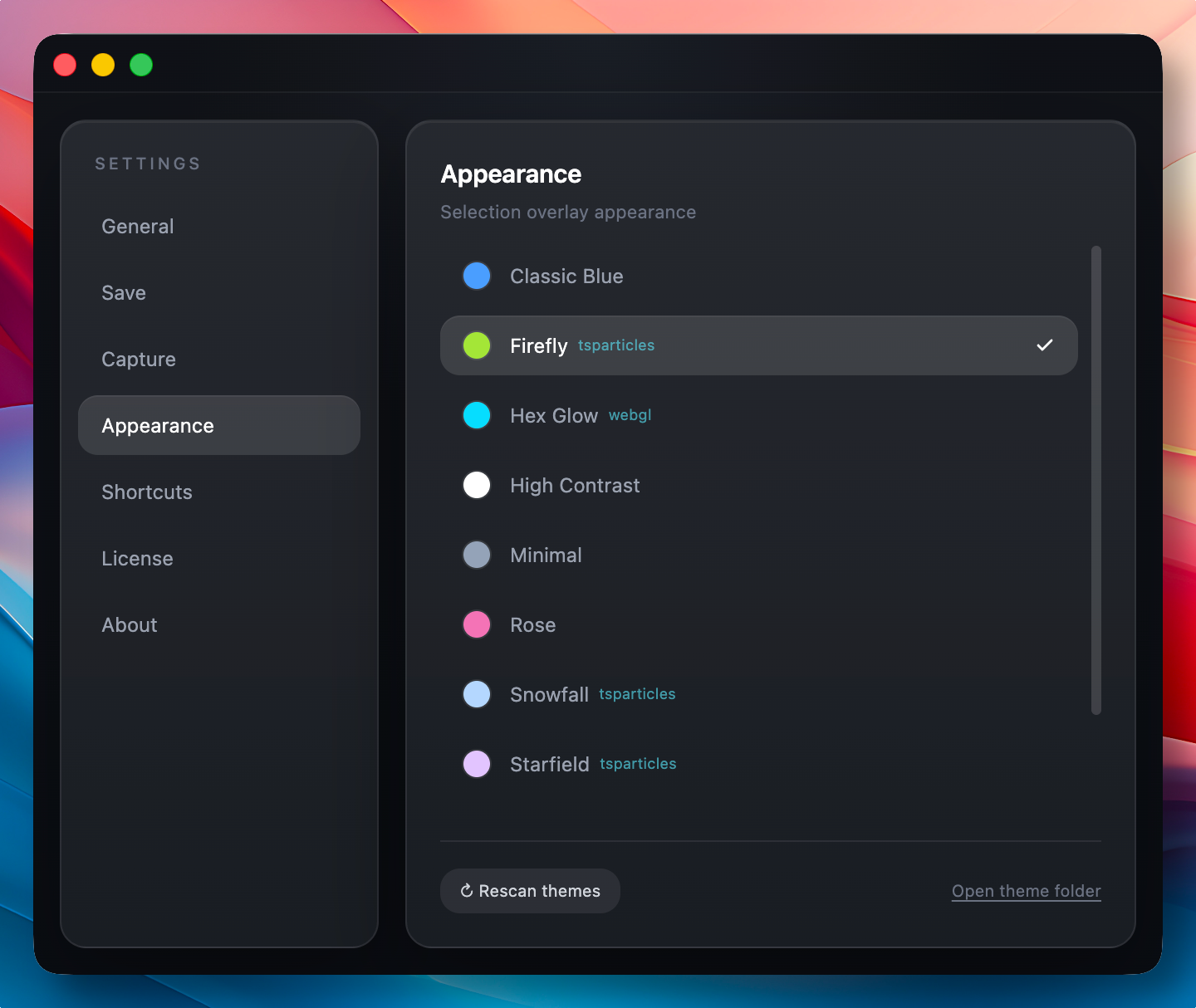
Custom themes are also supported. See App Themes for details.