 Snapr
SnaprA camera overlay sounds like one of those features that should take an afternoon.
Open the webcam. Put a rounded rectangle over the screen recording. Maybe add a mirror toggle. Done.
That is roughly true if all you want is a live preview.
It stops being true the moment the camera has to survive the full product workflow: recording, preview, timeline editing, workspace saving, export, and platform-specific camera bugs. The hard part is not drawing a webcam bubble. The hard part is making sure the bubble the user sees while recording is the same bubble that appears in the final exported video.
Why I didn't build this in the native recorder#
Snapr already has a native recording core. The screen recorder itself runs outside Electron, because screen capture, system audio, hardware encoding, and input events are exactly the kind of work that should stay close to the OS.
So the obvious question is: why not put camera overlay there too?
The answer is that camera overlay is more of an editing feature than a capture feature.
A camera bubble has UI state:
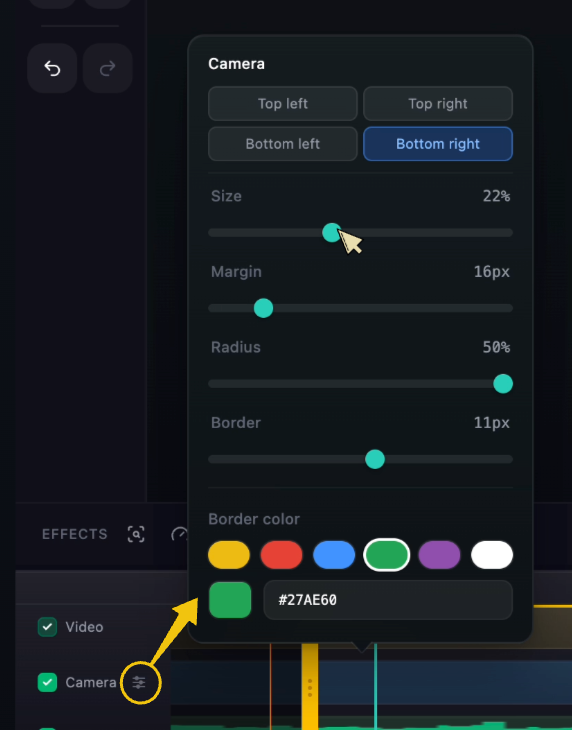
- where it sits
- how large it is
- whether it is mirrored
- whether it should appear in the editor
- how it should be rendered on export
- whether the user moves it later on the timeline
That state already lives in the Electron app. The timeline, editor, preview canvas, and export pipeline are all there. If I pushed camera composition down into the native recorder, I would have had to duplicate part of the editor model in C++ just to draw a rounded webcam bubble into the screen recording.
That felt like the wrong boundary.
Instead, Snapr records the screen and the camera as separate video sources, then composes them in the editor/export pipeline. The native layer still does what it is good at: recording the screen reliably. Electron handles the camera overlay because it is part of the user-facing editing model.
The architecture ended up looking like this:
Screen recorder
  native CLI
  -> screen.mp4
  -> input events
  -> audio

Camera preview window
  Electron renderer
  -> camera.mp4 sidecar

Timeline editor
  Electron renderer
  -> loads screen.mp4
  -> loads camera.mp4
  -> applies camera overlay placement
  -> previews/export final composition
This split gave me one important property: recording and editing use the same camera overlay model.
The preview is not the recording#
The first trap is assuming the live camera preview can simply be captured as-is.
In Snapr, the camera preview is a separate floating Electron window. It needs to stay above the recording controls, stay out of the captured screen area, and behave like a UI surface. But the final exported video should not contain that window. It should contain the camera frame as part of the composed video.
So the preview window does two jobs:
- Show the live camera feed to the user.
- Record a clean camera sidecar video for later composition.
The simplified flow looks like this:
const stream = await navigator.mediaDevices.getUserMedia({
  video: constraints,
  audio: false,
})

video.srcObject = stream
Once recording starts, Snapr draws the video element into an offscreen canvas, captures that canvas as a stream, and feeds it into MediaRecorder.
const canvas = document.createElement('canvas')
const ctx = canvas.getContext('2d')

const drawFrame = () => {
  if (video.readyState >= HTMLMediaElement.HAVE_CURRENT_DATA) {
    drawCameraVideoFrame(ctx, video,
		canvas.width, canvas.height, mirrorEnabled)
  }

  scheduleVideoFrame(video, drawFrame)
}

drawFrame()

const recorderStream = canvas.captureStream(frameRate)
const recorder = new MediaRecorder(recorderStream, { mimeType })
recorder.start()
That extra canvas layer looks unnecessary at first. It exists for one reason: mirror mode.
If the user turns on mirror mode, the preview should be mirrored and the recorded camera sidecar should match it. CSS can mirror the visible <video> element with scaleX(-1), but CSS does not change the raw media stream. To record the mirrored result, the app has to draw the flipped frame into canvas:
function drawMirroredVideoFrame(
  ctx: CanvasRenderingContext2D,
  video: HTMLVideoElement,
  width: number,
  height: number,
): void {
  ctx.save()
  ctx.translate(width, 0)
  ctx.scale(-1, 1)
  ctx.drawImage(video, 0, 0, width, height)
  ctx.restore()
}
The canvas becomes the source of truth for the sidecar recording.
Waiting for the camera to actually be ready#
Camera APIs have a frustrating habit: getting a stream does not mean the camera is visually ready.
The track can exist. The video element can be attached. The device can report dimensions. And still, the first few frames can be missing, black, or not yet decodable.
For a normal webcam preview, this is mildly annoying. For a screen recorder, it creates a real bug: the screen recording starts, but the camera overlay begins late or records a black first segment.
Snapr treats camera readiness as a separate phase. The camera preview window broadcasts a camera-preview:ready event only after the stream is opened and the video element is ready enough to produce frames.
if (recordingPhase !== 'preparing') return
if (status !== 'ready') return
if (!recordingSessionId) return

window.electronAPI.send(IPC.APP_ACTION, {
  type: 'camera-preview:ready',
  sessionId: recordingSessionId,
  cameraDeviceId,
})
The main recording flow waits for that signal before starting the real capture session.
This is one of those details users never notice when it works. They only notice when it fails, because the exported video has a missing or frozen camera overlay.
Saving camera as timeline state#
A camera overlay is not just pixels. It is timeline state.
When a recording finishes, Snapr stores the camera video path and timing metadata alongside the main recording:
{
  "files": {
    "video": "recording.mp4",
    "cameraVideo": "camera.mp4"
  },
  "cameraOffsetUs": 12000,
  "cameraDimensions": { "w": 1280, "h": 720 }
}
The timeline editor opens both videos. The main video drives the playhead. The camera video seeks to the matching time using the offset:
const cameraTime = Math.max(0, playhead - cameraOffsetUs / 1_000_000)
camera.currentTime = cameraTime
Then the preview compositor draws the camera frame into the final output rectangle:
const crop = resolveCameraSourceCrop(
  cameraFrameCanvas.width,
  cameraFrameCanvas.height
)

overlayCtx.save()
overlayCtx.beginPath()
overlayCtx.roundRect(
  overlayRect.x,
  overlayRect.y,
  overlayRect.size,
  overlayRect.size,
  overlayRect.radius,
)
overlayCtx.clip()

overlayCtx.drawImage(
  cameraFrameCanvas,
  crop.sx,
  crop.sy,
  crop.sw,
  crop.sh,
  overlayRect.x,
  overlayRect.y,
  overlayRect.size,
  overlayRect.size,
)

overlayCtx.restore()
The important part is that the editor is not playing back a pre-baked screen recording with the webcam burned in. It is composing the final result from separate sources.
That makes the camera overlay editable after recording. It also means preview and export can use the same layout logic.
The Windows camera problem#
macOS and Windows failed in different ways.
On macOS, camera permission and device discovery are the main things to get right. On Windows, I ran into a more annoying class of bug: some camera setups would produce a live track, but Chromium's hardware media path would decode black frames or hang.
From the app's point of view, this is especially frustrating because everything looks valid:
- getUserMedia() succeeds
- the camera track exists
- the track is live
- the selected device is correct
- but the decoded frames are black or the preview becomes unstable
For this, Snapr has a diagnostic fallback switch:
const decoder = new Decoder()
const decoderHardwareAcceleration = navigator.userAgent.includes('Windows')
  ? 'prefer-software'
  : undefined

const hardwareAccelerationOptions = decoderHardwareAcceleration
  ? { hardwareAcceleration: decoderHardwareAcceleration }
  : {}

await decoder.configure({
  // ...
  ...hardwareAccelerationOptions,
})
This is not the path I wanted. Hardware acceleration is usually the right default for video. But when the hardware decode path is the source of the problem, falling back to Chromium's software path is sometimes the more reliable option.
The product lesson here is uncomfortable but useful: camera support is not just "does the browser API support it?" It is "does this exact camera, driver, OS version, GPU, and Chromium build produce usable frames?"
Sometimes the workaround is not elegant. Sometimes it is a switch that gets a user's camera unstuck.
Why export makes everything harder#
Live preview is forgiving. Export is not.
In a preview, if the camera is a frame late, the user probably does not notice. In an exported video, timing mistakes become permanent. A camera bubble that starts 200ms late feels wrong. A mirror mismatch looks amateur. A position mismatch between preview and export breaks trust.
That is why I ended up treating camera overlay as a composition problem instead of a recording decoration.
The final export needs the same ingredients as preview:
main video frame
- cursor layer
- annotations
- zoom/crop/background
- camera sidecar frame at corrected timestamp
- camera overlay layout = composed output frame
Once the camera is modeled this way, it becomes just another layer in the editor. It can be previewed, saved, reopened, and exported consistently.
That consistency matters more than the implementation detail.
What I learned#
The easy version of camera overlay is easy because it ignores the product lifecycle.
A webcam bubble in a live UI is simple. A webcam bubble that survives recording, editing, saving, reopening, and exporting is a small media pipeline.
The biggest decisions were not about drawing. They were about boundaries:
- Native records the screen.
- Electron owns the camera preview and editing state.
- Camera is stored as a sidecar video, not burned into the recording.
- Preview and export share the same composition rules.
- Platform-specific camera failures need practical fallbacks, even when they are not pretty.
I still like this boundary. It keeps the native recorder focused and lets the editor stay flexible.
And it makes the feature feel simple from the outside, which is the whole point.
Snapr is a screen capture and recording app for macOS and Windows. It supports screenshots, screen recording, scroll capture, annotations, timeline editing, camera overlay, and polished video export in one workflow.